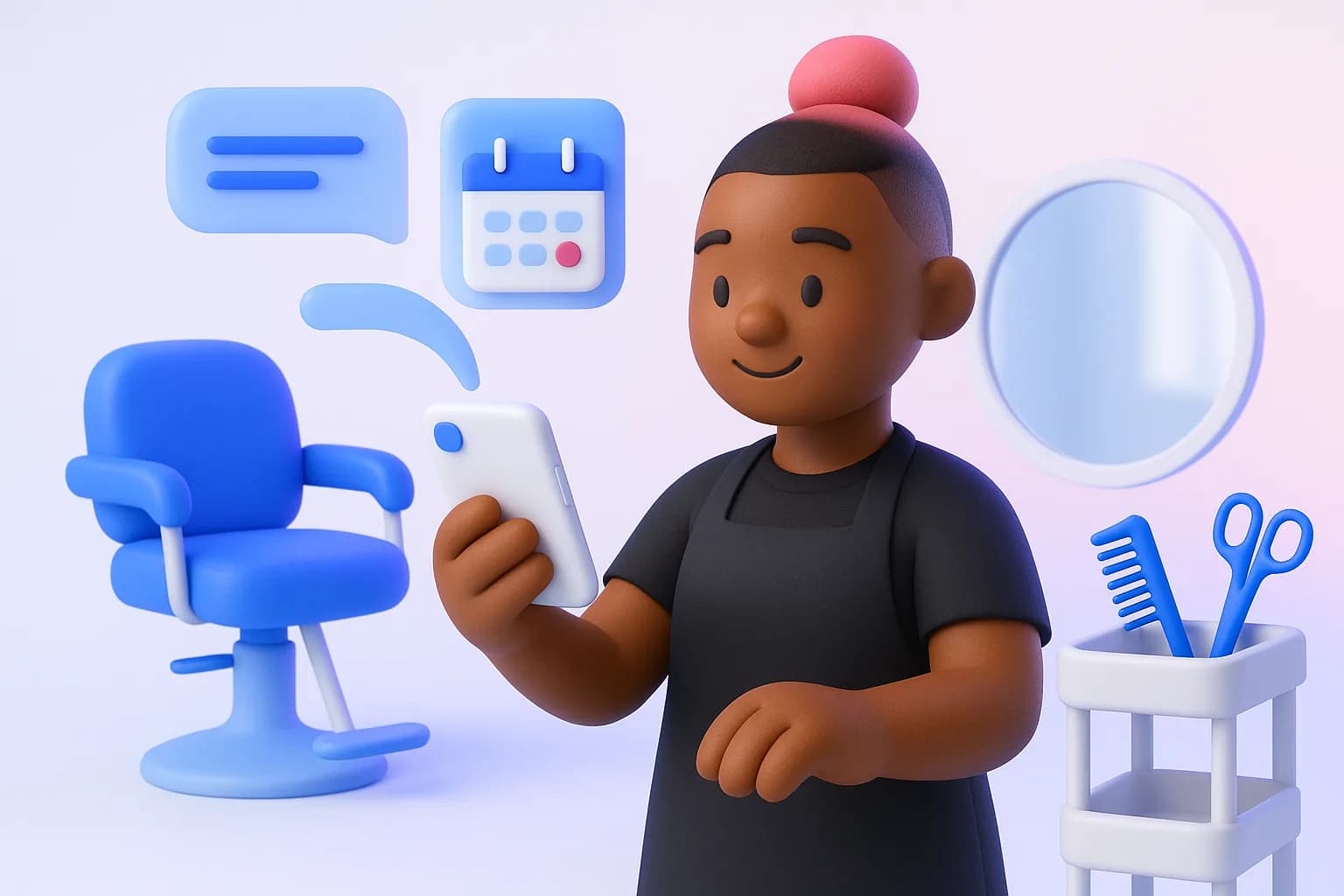
In a salon, clinic or spa, most new clients start with a DM about price or availability while you're mid-appointment. This playbook sets AeroReply up so those messages get a fast, friendly answer with your booking link, and your best work keeps showing up in the feed without eating your evenings.
At a glance
- Who it's for: Hair and beauty salons, barbers, nail studios, spas and aesthetic clinics.
- Channels: Instagram, Facebook, TikTok and Google Business Profile.
- Team: An owner who also works the chair, and a front desk if you have one.
- Setup time: About an hour.
- You'll use: Inbox with AI reply drafts, comment-to-DM, Link in Bio, Planner.
The challenge
You can't reply with gloves on. Price and availability questions wait for hours, and many of those people book somewhere that answered first.
- "How much for…" DMs that need the same answer and a booking link.
- Before-and-after photos that pile up on your phone instead of in the feed.
- Gaps in the week that a quick post could have filled.
Step 1: Put your price list where the AI can read it
0 of 0 done
- Open Settings → Brand kit
- Under Knowledge, add your services, prices, how long each takes and your booking link
- Under Voice, paste two or three of your own captions
Now every Draft a reply quotes the right price and ends with your booking link.
Step 2: Build a booking page for your bio
0 of 0 done
- Open Link in Bio and click Create page
- Add your booking link first, then your price list and location
- Copy the page address into your Instagram and TikTok bios
Step 3: Send the booking link from comments automatically
When an Instagram post asks people to comment, a flow can DM them the link in seconds.
0 of 0 done
- Open Automation and start from Comment → DM my link
- Set Keywords to BOOK, add a friendly DM message and your booking link under Button
- Use Test comment, then turn it on
Step 4: Show your work on a schedule
0 of 0 done
- Set two or three slots a week under Settings → Posting schedule
- After each great result, open Planner, click Create post, add the photo and ask the AI for a caption
- Click Add to queue
Always get the client's permission before posting a photo of them.
What to track
- DMs sent by your BOOK automation, and how many turn into appointments.
- Clicks on your booking link under Analytics → Link in Bio.
- Median reply time in Reputation, especially on your busiest days.
Your first week
0 of 0 done
- Add your price list and booking link under Knowledge
- Create your Link in Bio page and add it to your bios
- Turn on the BOOK comment-to-DM flow
- Queue three before-and-after posts that end with "Comment BOOK"
- Answer every price question with an AI draft
Where to go next
- Turn comments into leads with comment-to-DM for the full flow setup.
- Comment-to-DM keyword kit for the BOOK flow wording.
- Social media for salons, spas and clinics.
Ship on-brand posts in minutes
Back to playbooksAI content, scheduling, engagement and a full marketing suite — free to start.
Start free