
Create the post
0 of 0 done
- Open Planner in the sidebar
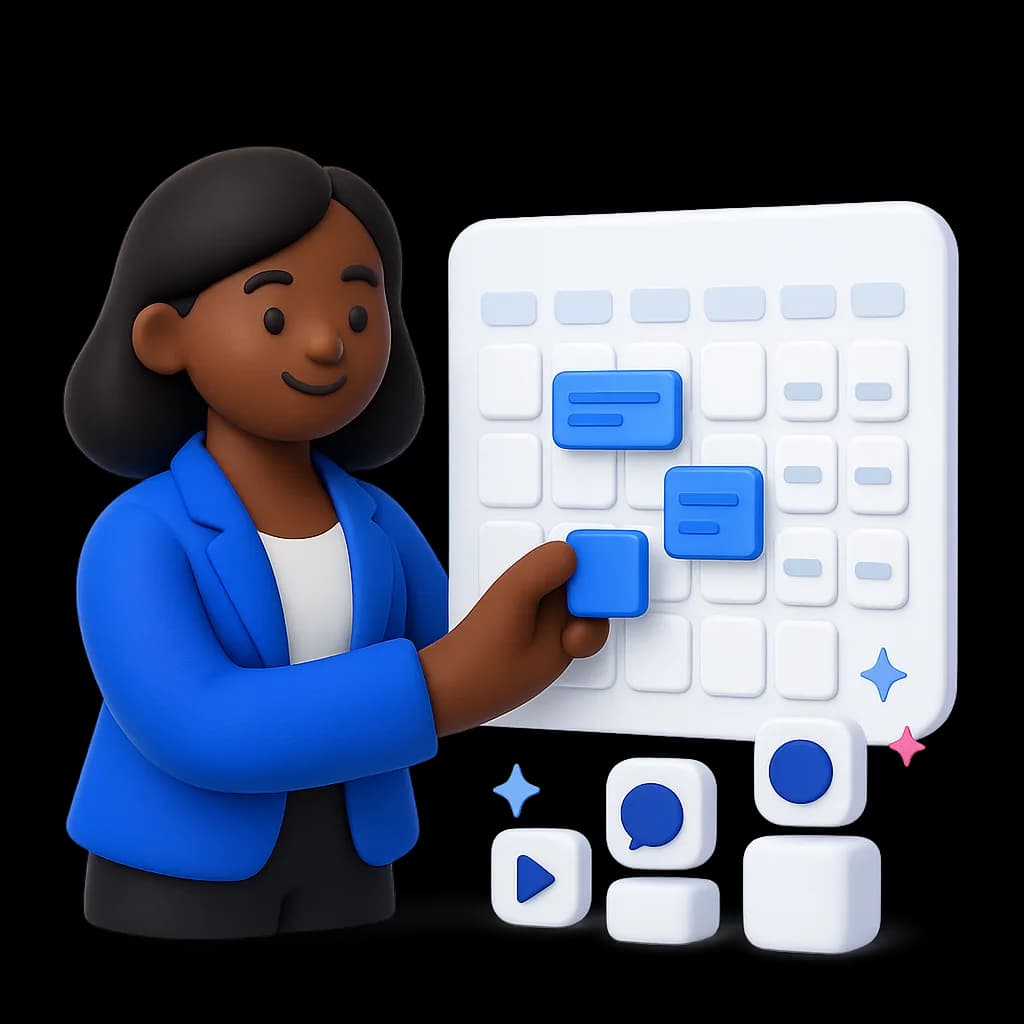
- Click Create post, or click an empty slot on the calendar
- Choose Blank post, or start From a design, then click Create post
- Write your caption, add media and pick the accounts to post to
Choose when it goes out
- Schedule: pick a date and time under When
- Add to queue: publishes at your next open best-time slot
- Publish now: sends it straight away
The composer suggests best times as chips you can click. Labels help you group posts into campaigns.
Change or cancel it
Open the post from the Planner to edit it. To stop it from going out, open More actions and choose Cancel post: it moves back to draft. The same menu can move it to the next open slot.
Was this helpful?
Ship on-brand posts in minutes
Back to help centerAI content, scheduling, engagement and a full marketing suite — free to start.
Start free